

ELECOM HUGE Trackball, 2.4GHz Wireless USB, Index Finger Control, Customizable 8-Button, Large Soft Palm Rest, 52mm Ball, Windows PC Mac (M-HT1DRBK)
$54.99




Price: $54.99
(as of Sep 22, 2025 04:12:29 UTC – Details)
From the brand


HUGE Trackball
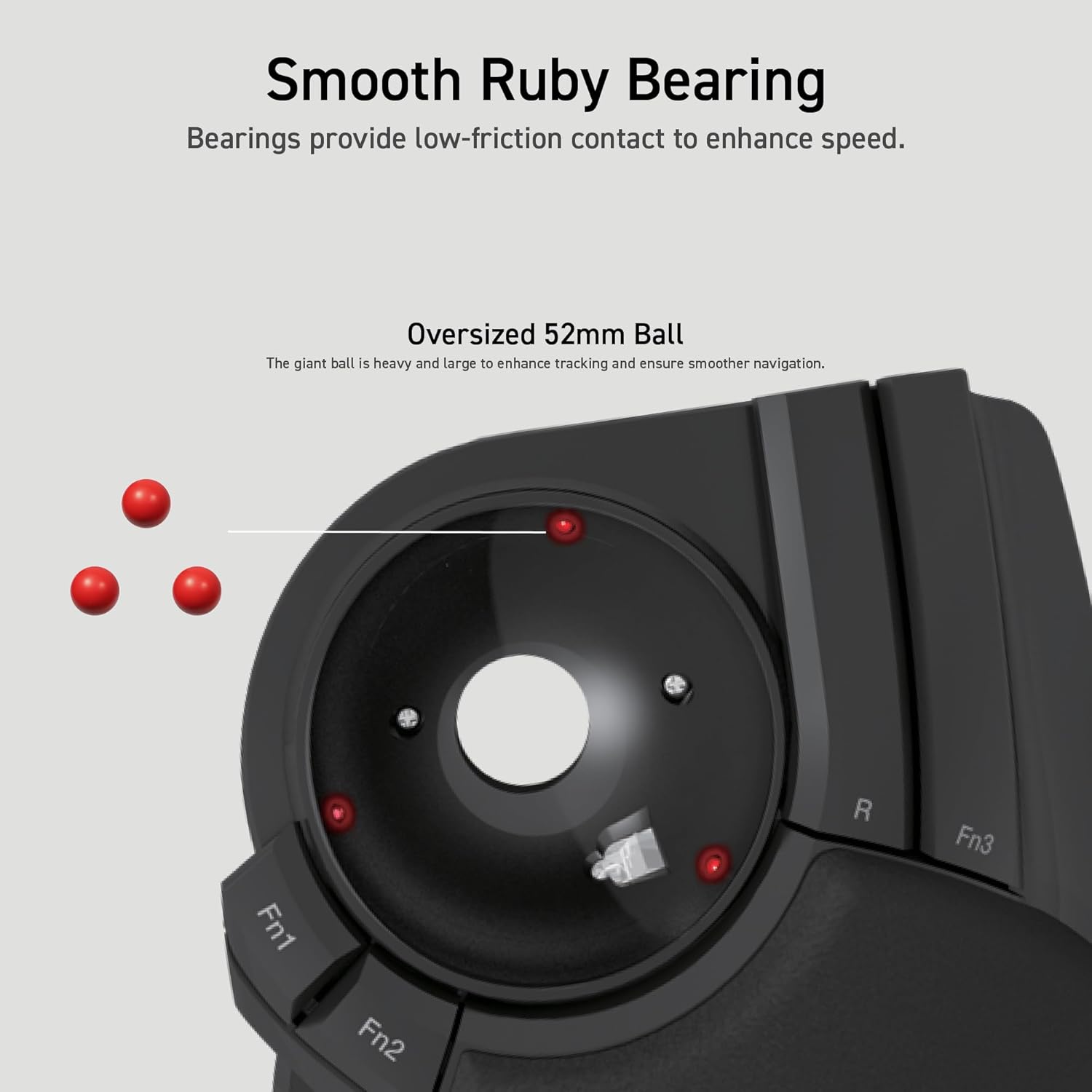
The large 52mm-diameter trackball delivers an unimaginable feel of control. “HUGE” because it is larger than a regular trackball.

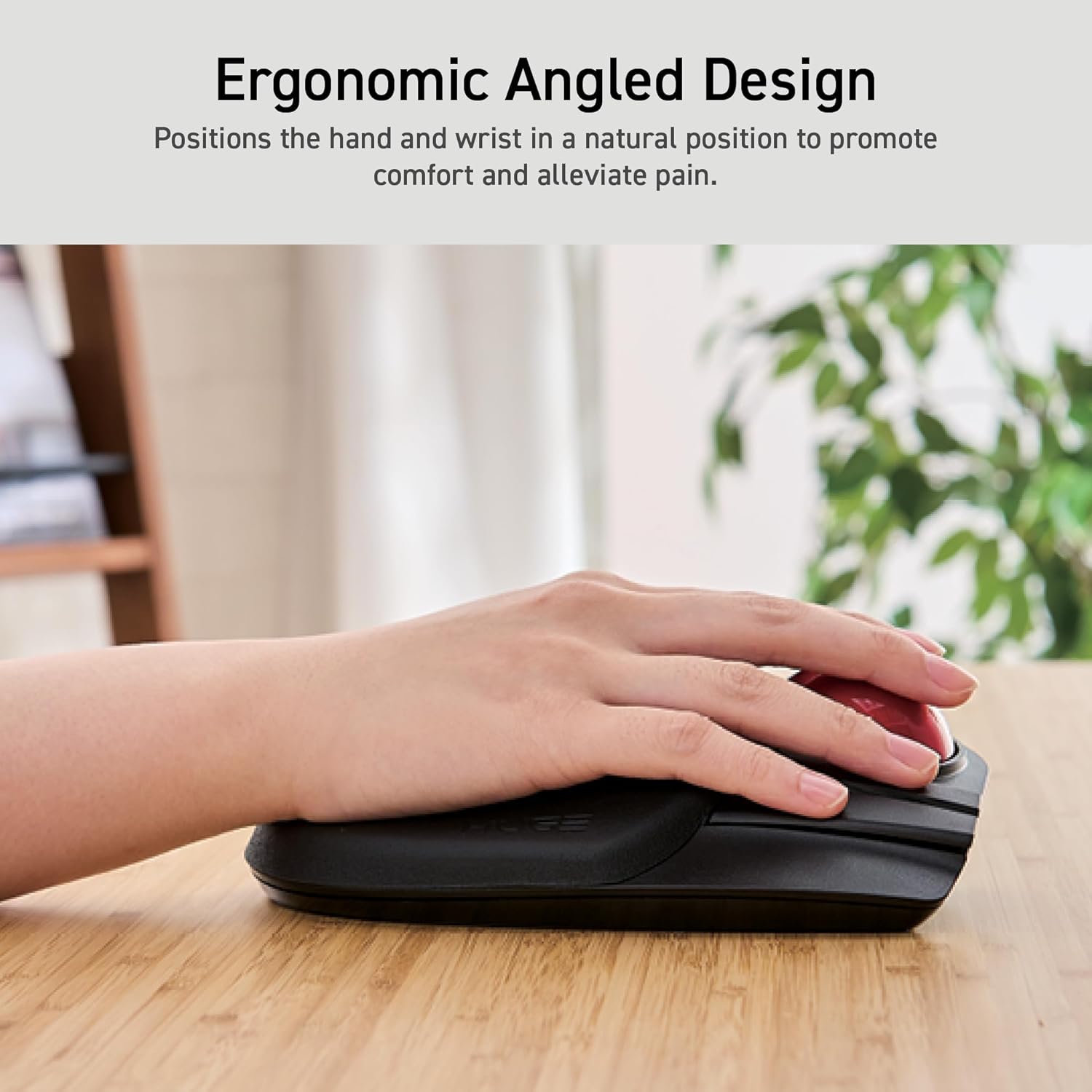
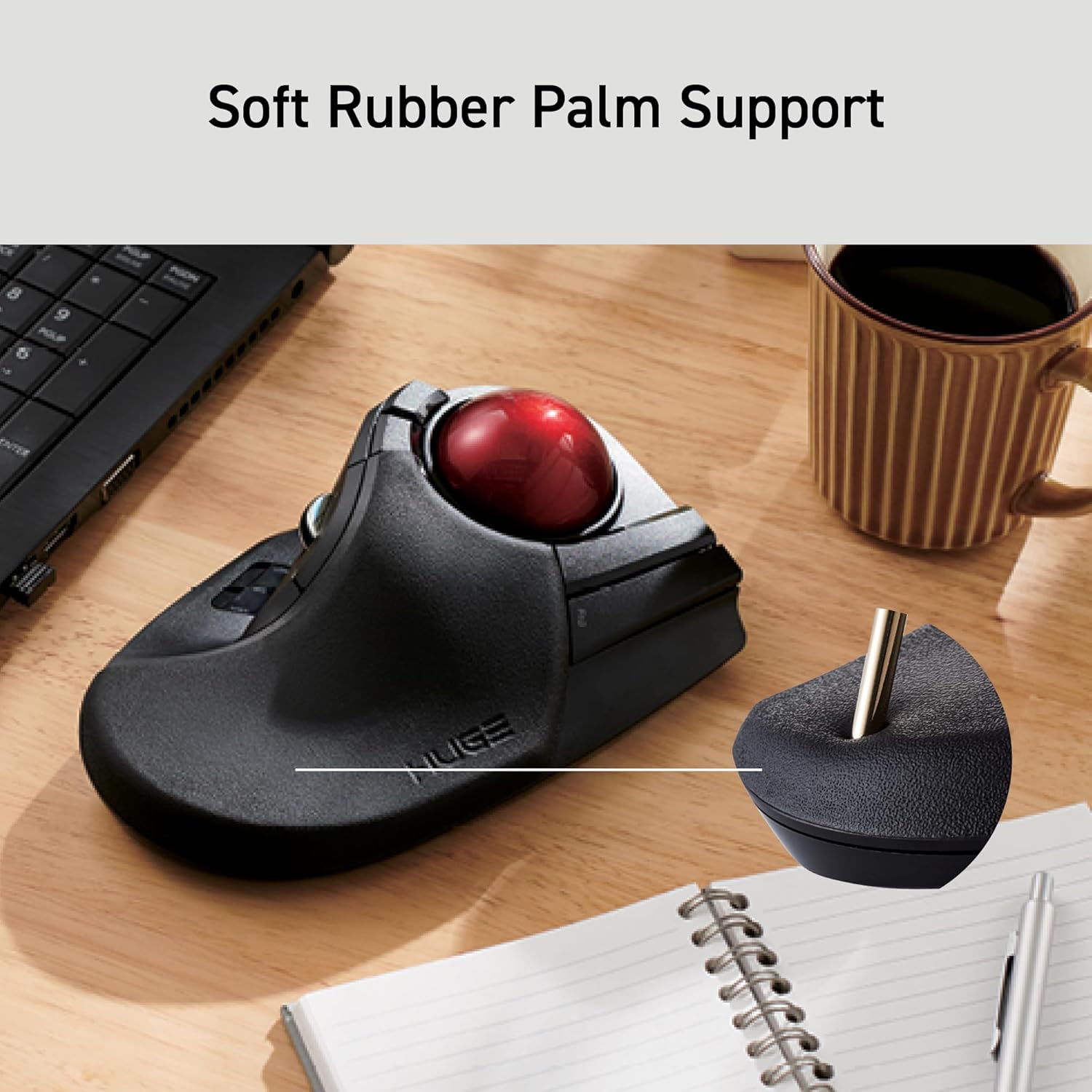
The large trackball provides an unimaginable feeling of control. Index and middle finger operation type wireless trackball mouse with palm rest to reduce the burden on the wrist during long hours of PC work.

Thumb Model Features
The shape and the placement of each button are similar to those of a mouse, making it easy for people who have used a mouse before to get used to the shape.
Thumb Model

Index-Finger Model Features
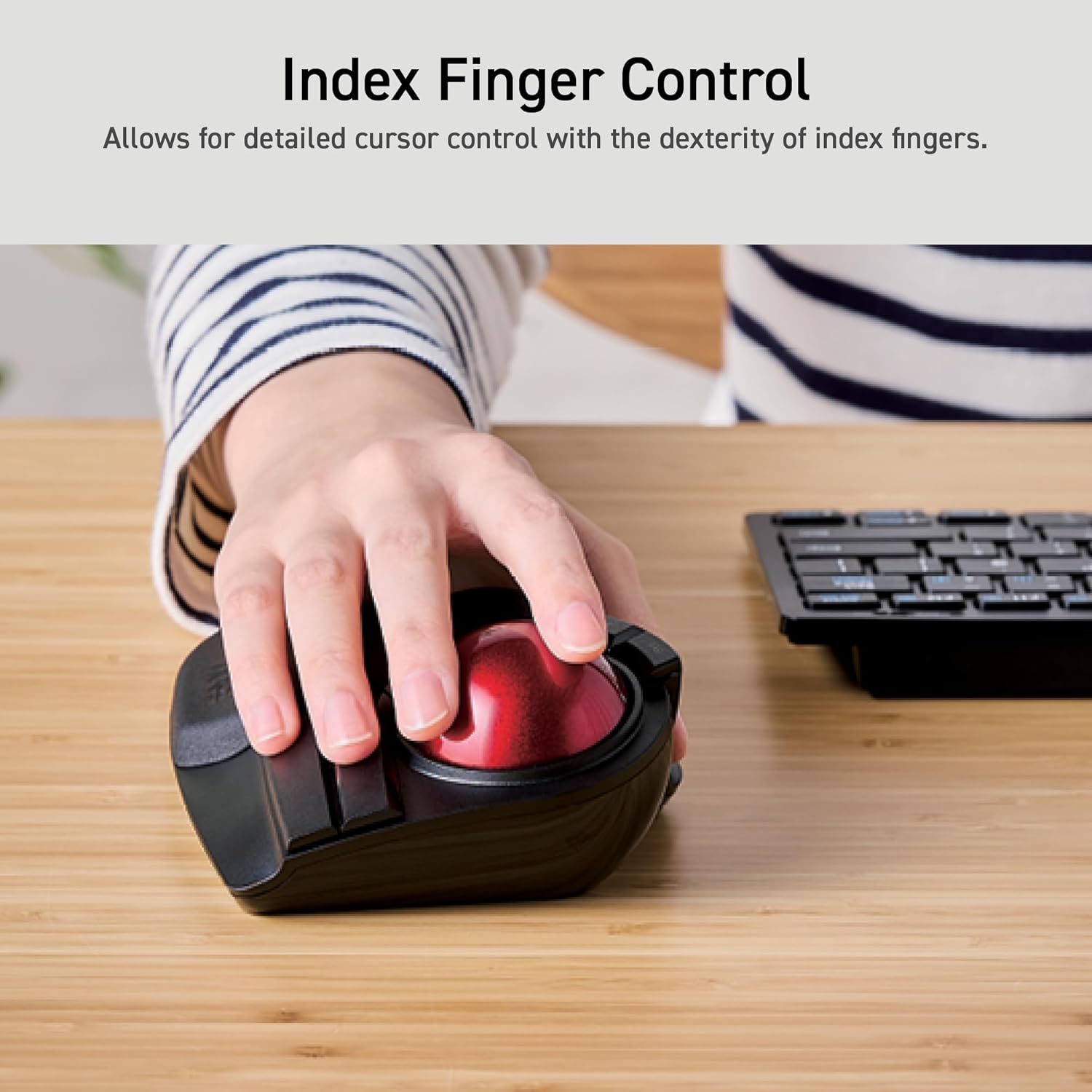
To equip with a larger ball than the thumb type. This has the advantage of making it easier to control the fine movements of the cursor. The feel of the operation is unique and requires some getting used to.
Index-Finger Model
Handy Model & Accessories

Japan Design
High design quality has been recognized by numerous design awards, including the Good Design Award, as well as by many users.

ELECOM is a Japanese consumer goods company with a simple mission: create quality products that deliver the most comfort and convenience for its customers. With a track record boasting some of the most innovative yet accessible products ever created, ELECOM has consistently raised the standards of excellence for technology products while taking care of its customers and employees.
✅《Optical Tracking Technology》The ELECOM trackball provides precise cursor movement for superior accuracy so you can get where you want on the screen quickly with less hand movement, improving productivity and efficiency.
✅《Functional 8 Buttons》It is very easy to move in any direction. It comes with 8 physical buttons on the device and the two extra buttons are the scrollwheel tilting that allow horizontal scroll.
✅《DPI Cursor》Designed with a high-performance gaming optics system sensor and lens. The DPI button can easily change between 500(LOW), 1000(MID) and 1500(HIGH) DPI, making the movements of your cursor faster or slower.
✅《Easy Maintenance 》The ball rolls on three 2.5 mm large artificial ruby ball bearings. They are extremely smooth and the relatively large size prevents dust and dirt from clogging them. So you don’t have to clean the ball bearings too often. The ball is held in place by the ball bearings, but can easily be popped out of the device, by pushing it through the hole in the bottom and it can be easily cleaned.
✅《Product Details》System requirements: Windows 7, Windows 8, Windows 10 or later, macOS 10.13 or later, Size: W4.5″(114.7mm) X L7.2″(181.9mm) X H2.3″(57.2mm), Weight: 9.2oz(without battery), DPI: 500/1000/1500 count (switchable), Connectivity: wireless, 1 X AA battery(Included)- Battery Remaining Light Lamp equipped.
Customers say
Customers find the trackball to be of good quality, with lots of programmable buttons that are easy to understand, and appreciate its ergonomic comfort and silky-smooth marble surface. The trackball receives positive feedback for its accuracy, with one customer noting its extremely precise top side design. Customers disagree on the size, with some finding it perfect for large hands while others say it’s too large. The functionality and movement receive mixed reviews – while the trackball works well initially, some report it stops working after a few months, and while the ball moves smoothly, the scrolling behavior on Mac is inconsistent.
7 reviews for ELECOM HUGE Trackball, 2.4GHz Wireless USB, Index Finger Control, Customizable 8-Button, Large Soft Palm Rest, 52mm Ball, Windows PC Mac (M-HT1DRBK)
Add a review
Related Products


$54.99

NM –
As an MS Trackball Explorer user since The Win98/PS2 days, this is an excellent “replacement”
Quick Summary: MSTE users who don’t have an MSTE – get this mouse as it’s the closest “replacement” to date. Obviously, if one wants a mouse like the MSTE, then get an MSTE. But even a used MSTE costs a bit and you have to be careful of the cord. If one wants something Less Expensive that closely resembles the MSTE and is also cordless, then this is the best mouse on the scene since the MSTE itself.Update2: Trying to add some slightly better pictures and others that show the MS Trackball Explorer, Logitech Cordless Optical Trackmall, and the smaller Elecom “DEFT” trackball mouse. But some pictures are not loading to the site. Sorry. :(Update1: IMPORTANT NOTE: Waaay down in the comments (the oldest one at the “bottom” should be a link to the Elecom software download page and the English PDF manual. As this mouse is “very new” you *DO* need a more recent Elecom proprietary software to recognize this mouse if you wish to use it’s three proprietary function buttons (F1-F3).Long Winded Review===============This new Elecom Fingerball wireless mouse – the M-HT1DRBK – appears to have been released is June 2017 and has been available on Amazon since July 2017. In August I was about to order a second of the smaller Elecom M-DT2DRBKs when I stumbled over this new **larger** “HUGE” mouse and figured it was worth a try. The M-HT1DRBK just arrived and after giving it a ten minute test spin I just ordered two more. No clue if it will take “1-2 months” for the next batch to arrive, or if the price will drop from $85.99, but would say it is certainly worth the investment. FYI: It actually does say “HUGE” on the mouse itself. :)Comparisons to the MSTE (MS Trackball Explorer)======================================1) It has a nice large “red ball” like a certain MSTE we all know and love. In fact, the Elecom ball is slightly BIGGER than the MS one. There were many reviews about the smaller Elecom mouse’s “grey ball” having issues, and several people purchased a “blue” M570 ball to swap with the “grey” one. From my quick tryout of this new mouse with it’s “red ball”, would say that the quality looks to be significantly better than that of the smaller mouse’s “grey” one. An excellent improvement.2) This mouse is *MUCH LARGER* than the smaller “grey ball” M-DT2DRBK. Excellent for people with “larger” (aka normal sized) hands.3) It is a bit wider than the MSTE, and Elecom moved one of the three proprietary “Function Buttons” to the right side of the ball. If you use their proprietary software, this would give you “two buttons to the right of the ball” just like the MSTE.4) MOST IMPORTANT OF ALL. This mouse has a PALM REST. As this seems to be an alien concept to most mouse manufacturers I will state it again – this mouse actually has a place for the palm of one’s hand to “rest” while using the mouse, so for the first time since the MSTE, there is actually a trackball that not only fit’s one’s hand, it is actually COMFORTABLE. Plus it doesn’t have teeny tiny thumb-killing buttons like a certain L*git*ch Trackman. Wish I could show a decent side-view of the palm rest, but this can also be seen with via the pics on Elecom’s web site.5) ??? I would assume that being a wireless device, there may be an occasional “lag” in response times, but cannot say for certain. However there does appear to be a wired version of this mouse as well. It’s part number (August 2017) is M-HT1URBK.Usage=====Bulk of this review was written after only ten minutes of mouse use, so haven’t had the time to give it an extended run, but observations so far are positive. “Weeks later” – Still great. Haven’t tried the Elecom software yet myself (not using the F1-F3 buttons).- Seems to respond MUCH better than the smaller Elecom version (blue or grey ball).- Range seems to be about the same as the smaller one. About nine feet out it gets tricky and Line of Sight is critical.- The “left” button isn’t as “tall” as the MSTE’s, so my clumsy thumb is hitting the wheel, but this should be a minor issue.- ??? I read elsewhere that the “left” and “right” mouse buttons are “better quality” than the other buttons, that one should be able to tell the difference, that they should have made *all” the buttons “better quality”, etc. Haven’t noticed any difference between buttons yet. Too busy enjoying having a wireless mouse that actually fits the shape of my hand for a change.Customization – aka The Buttons========================So far as remapping buttons, “drivers”, and support for various operating systems… Would assume this mouse works as a basic mouse in anything from XP up to Win10. You’ve got your Left, Right, Forward, Back and Wheel Buttons, plus the three Extra Proprietary Function Buttons F1-F3. Remapping the eight buttons and basic customization is where it gets interesting. Would assume one needs at least version 5.1.0 of Elecom’s proprietary software to use/control all eight buttons. For now I am sticking with X-Mouse Button Control which allows configuration of everything except the three extra Function Buttons. Both programs allow for the use of multiple profiles for easy customization across different applications. Elecom’s software (and English PDF manual) is available from their website. I will try adding possible links as a “comment” later as this review is too long as it is.Odd Future Issue (?)================Since the palm-rest is made of a “soft” material vs plastic, I wonder how it might hold up over time. Will it wear out? Time will tell.
Eric L. –
Best gaming trackball I’ve found so far
I’m one of the small minority of gamers that plays PC games with a trackball, so this review will mostly be centered around my gaming experience with the Elecom M-HT series trackballs.For a long time, I played games with a Kensington Orbit trackball, simply because there weren’t many alternatives out there that offered fingertip control and a decently weighted ball. Of course, the downside of that trackball is that it only has two buttons, and the scroll wheel is unfortunately positioned where it’s way too easy to hit accidentally (resulting in embarrassing weapon switches in the middle of combat). However, at the time, it’s what I had.When I ran across the Elecom M-DT (Deft) series, it was a breath of fresh air, a fingertip trackball that had a decent amount of buttons and a scroll wheel that was out of the way, but easily reachable. The downside of that trackball was the ball itself. It was too light, which caused some lost accuracy when sniping and didn’t give me the satisfying flick response of the Kensington. Still, overall it was an improvement, and I went with it for another year or so.When I ran across the Elecom M-HT (Huge) series, it was a no-brainer. I spent about 15 minutes looking over specs and reviews, and hit the buy button. It arrived yesterday. I immediately hooked it up, updated the mouse assistant software from Elecom, and started playing games with it.The motion of the ball is incredibly smooth, and the weight of it stabilizes the position, allowing for more accurate sniping and reliable flick moves. If anything, the ball might be slightly too heavy, causing minute amounts of lag and oversteer with rapid “twitch” moves. However, it was pretty easy to get used to, and the size and weight of the ball allowed for some very stable aiming.The finger position for the buttons has been greatly improved since the M-DT series. The right click and Fn3 buttons fit right under my ring and pinky fingers, leaving the index and middle fingers to control the ball. I usually roll the ball with my index, middle and ring fingers, pulling my hand slightly out of the “proper” position, but the integrated palm rest allows my hand to easily return to the default position without having to think about it.The integrated palm rest is another big improvement over the M-DT series. When I used a separate palm rest, the trackball would often wander out of position, especially during flick moves, which would be distracting as I would have to “reset” the position of the trackball to keep my fingers in the ideal positions for the buttons. With the M-HT, the palm rest is integrated, so the trackball doesn’t move unless I actually want it to.The software (downloadable from elecom.co.jp) is pretty basic. In assigning functions to buttons, most of the basic PC user stuff is available in dropdowns. For gaming, I make use of the “arbitrary key” option, which allows for up to 3 simultaneous keypresses for each button press (such as a key and up to 2 modifiers). I haven’t made use of the gesture function, which allows for a button to have more than one function using gestures on the trackball, since I wouldn’t want anything to get in the way of fluid movement while gaming. The software doesn’t have support for macros or sequential keypress combinations, but I’m fairly certain that could be compensated for by adding other software such as a macro manager.I’d have to say that my least-used feature is the resolution switch. One of the benefits of a trackball in gaming is that its “resolution” is inherently variable. At a low resolution setting, accurate sniping is possible, while quick moves can still be managed with “flick and tap” maneuvers or by “walking” the ball with multiple fingers. I left the switch at the middle setting, and adjusted the mouse scaling to my liking. I figured I could switch it up or down on the fly for different scenarios, such as distance sniping and CQC, but honestly I haven’t needed to switch it so far. Time will tell.Pros: Smooth and stable ball motion, integrated palm rest, good button positioningCons(?): The ball might be slightly too large and/or heavy, but it’s easy to get used to. Small hands might have a more difficult time finding a comfortable position, but my hands aren’t exactly huge.Summary: This is the best gaming trackball I’ve found so far.Additional note: It seems the ball was initially lubricated when I took it out of the package. After washing the ball as a test, the tracking was a bit “stiff”. Natural oils from your hand will eventually loosen it back up, and from what I’ve read this is actually the best lubricant because the parts are designed to deal with this sort of scenario. (Finger oil is inevitable, and in this case it actually helps.)
Diego –
Buenisimo. Una vez te acostumbras a un trackball no hay vuelta atras. Diria que de las mejores opciones que hay, comodo, de calidad y preciso. Recomendado.
n3mo –
Assolutamente in mio Trackball preferito.à stato necessario sostituire i cuscinetti in rubino, davvero poco scorrevoli, con cuscinetti in ceramica G5 da 2,5mm ed inserire degli spessori nella culla della sfera per permettere ai cuscinetti di roteare, per avere un movimento fluido e senza striction.Ovviamente serve un minimo di manualità , e la consapevolezza che cosi facendo si perde la garanzia (a me sembra un prodotto molto resistente, e sicuramente con un costo non eccessivo, quindi ne vale la pena), ma adesso è il TOP!Software molto personalizzabile;Forma ampia e comoda (ma questo può variare da mano a mano);Tanti pulsanti personalizzabili e ben raggiungibili;Scroll verticale preciso e con tilt scroll (quello orizzontale);Diversi livelli di DPI;Due livelli di precisione (immagino sia la potenza del segnare radio) io lo tengo al massimo e la batteria dura parecchio.Insomma, davvero soddisfatto.P.S. Evitate i trackball con sfera per il pollice, la scorrevolezza non dura da Natale a S.Stefano!
OCM –
excelente producto.. muy cómodo su uso. buenos materiales
Alexandre –
J’ai testé plusieurs souris ergonomique que ce soit chez Logitech (Mx Master 3, Mx Ergo, Lift), mais aussi des souris qu’on appelle pointeur central (Ergo Slider plus et Mousetrapper Prime) ; mais la meilleure reste la ELECOM M-HT1DRBK.Certes, il faut s’habituer au changement des clics gauche et droite mais une fois qu’on a pris le coup de main c’est très agréable.Le gros plus de cette souris est qu’on peut ajouter des macros à chaque touche pour chaque application que l’on utilise. Et c’est la première souris pour laquelle on peut programmer autant de boutons (8 par application). On ne bouge pas le poignet donc on évite bien des douleurs style tendinite de la souris à faire des mouvements répétitifs.Le point négatif si on peut dire qu’il est négatif, est que l’application est soit en japonnais soit en anglais mais bon, on s’habitue très vite. Il faut chercher un peu pour la configuration des macros car elle est moins intuive que chez Logitech avec le logiciel Options Plus. Il faut aller chercher l’exécutable de l’application pour configurer la macro. Mais une fois qu’on a compris le fonctionnement et où sont les exécutables dans l’explorateur de fichiers du PC, c’est assez simple.Pour ma part, après avoir testé cette souris durant plusieurs mois, j’ai décidé de m’en acheter une seconde pour en avoir une pour l’agence et une pour le télétravail étant donné qu’elle est assez imposante, elle tient beaucoup de place dans un sac même si j’ai acheté une housse pour la protéger.En résumé, je vous recommande cette souris pour celles et ceux qui ont des douleurs aux poignets car elle facilite grandement le travail bureautique au quotidien. Et si vous aimez créer des raccourcis multiples et diverses pour éviter des CTRL+C avec CTRL+V par exemple, amusez vous à créer des macros si la configuration ne vous fait pas peur. Vous verrez que c’est très utile et évite encore plus les douleurs musculo squelettiques.
Batuhan K –
Ne kadar alıÅmaya uÄraÅsam da alıÅamadım. Benimle birlikte alan birini tanıyorum, o çok güzel alıÅtı hatta bendekini de istedi. O yüzden ben alıÅamadım diye puan kırmayacaÄım. Ama o kiÅi oyun için kullanmıyor. Oyunda nasıl kullanılabilir zaten bilmiyorum, kullananı tebrik ederim.Mouse çok büyük. Ãok büyük derken ciddiyim, belki normal bir mouse’un 2 katından bile daha büyük. Eliniz küçükse daha küçük modellere yönelin. Yazılımı pek hoÅuma gitmedi ve sürekli çalıÅması gerekiyor. Arka planda Windows hizmeti olarak çalıÅması da yetmiyor yazılımın hep açık olması gerek tuÅ iÅlevlerinin çalıÅması için. Mouse’un kendi hafızası da yok. Puanı bu yüzden kırıyorum. Bunun dıÅında malzeme kalitesi gibi diÄer kısımları fiyatına göre gayet iyi.